Audio Balance Test: Fix Headphones One Side Quieter (Win 10/11)
Is one side of your headphones louder than the other? Use our Audio Balance Test to diagnose uneven sound and fix L/R balance in Windows.
We build and review browser-based hardware diagnostics for monitors, keyboards, mice, audio, and controllers. We validate tools with real devices and update guides as browser behavior and standards change.
Audio Balance Test: Fix Headphones One Side Quieter
Is your left earbud playing music louder than your right one? Or does the sound in your gaming headset feel "off-center," forcing you to tilt your head just to hear dialogue clearly?
Uneven audio balance is a frustrating issue that affects both cheap earbuds and expensive studio headphones. The good news is that it is often a software setting, not a broken device.
Use our Audio Balance Test guide and tool below to diagnose and fix uneven sound levels on your PC.
Open the Audio Balance & Stereo Test — play left/right tones and a steady sound to match volumes. (Tip: use the constant tone to fine-tune L/R sliders, then re-run the left/right clicks to confirm balance.)
How to Check Your Audio Balance
Before changing any settings, you need to confirm if the issue is with your ears, the file, or the device.
- Wear your headphones correctly.
- Play the "Left" and "Right" test tones using the tool above.
- Listen critically. Do they sound equally loud?
- Swap sides. Flip your headphones around (put the Left cup on your right ear).
- Scenario A: The quiet side moves with the headphone cup. (e.g., The quiet sound is now in your other ear). -> It's a Device/Software issue. (Read on for fixes).
- Scenario B: The quiet side stays in the same ear. -> It might be your hearing. (Consult a doctor or clean your ears).
How to Fix Uneven Sound on Windows 10/11 (The "Hidden" Balance Slider)
The most common culprit for uneven audio on PC is the Windows Audio Balance setting, which often gets changed accidentally.
Here is how to restore perfect L/R balance:
For Windows 11 Users
- Open Settings > System > Sound.
- Click on your active output device (e.g., "Headphones" or "Realtek Audio") to open its Properties.
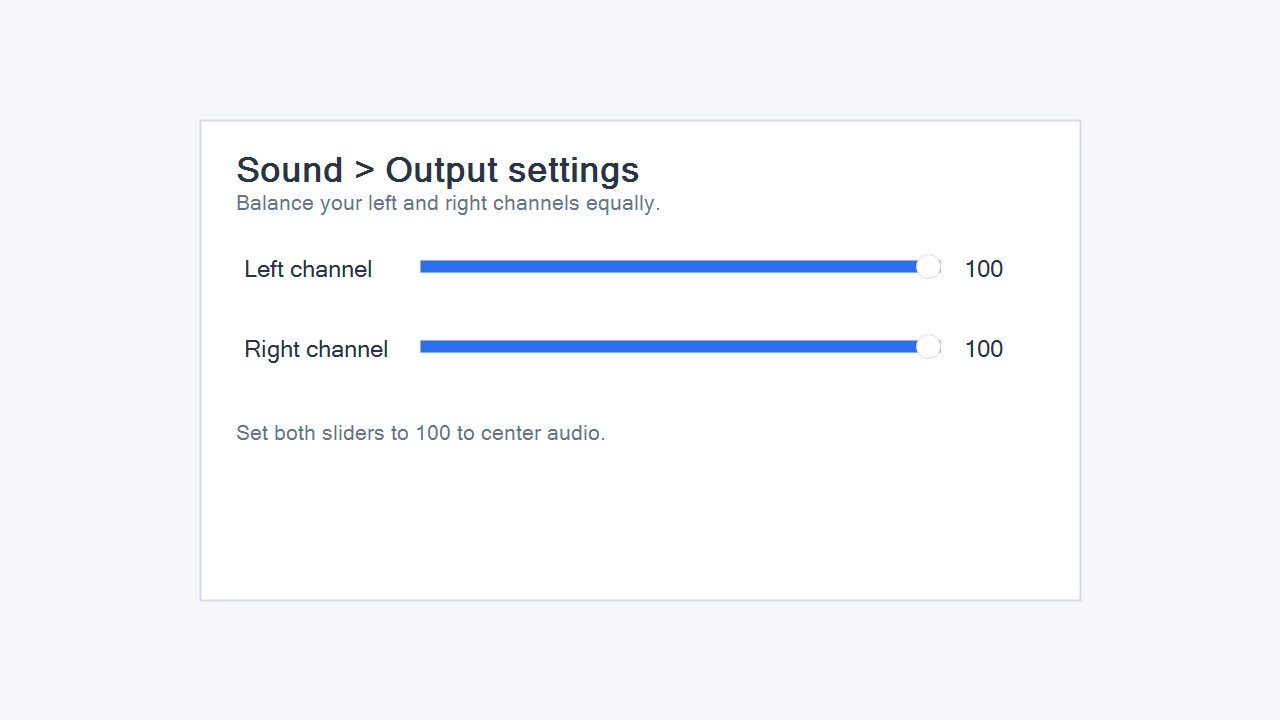
- Scroll down to the "Output settings" section.
- You will see "Left channel" and "Right channel" sliders.
- Set both to 100 (or ensure they match exactly).
For Windows 10 Users
- Right-click the Speaker icon in your taskbar and select Sounds.
- Go to the Playback tab.
- Right-click your headphones/speakers and select Properties.
- Go to the Levels tab.
- Click the Balance button.
- Ensure L and R are both set to the same number.
Hardware Fixes: Cleaning the Jack
If your software settings are perfect but one side is still quiet (or crackling), the issue might be physical dirt.
- The "Spin" Trick: Plug your headphone jack into the port. Play some music. Gently spin/twist the jack inside the port. If the volume fluctuates or crackles as you spin it, your port is dirty or oxidized.
- The Clean: Use a can of compressed air to blow out the port, or use a cotton swab lightly dampened with isopropyl alcohol to clean the headphone plug.
Still No Sound on One Side?
If one side isn't just quiet but is completely silent (Dead Channel), the fix is different. You likely have a broken wire or "Mono Audio" enabled.
More Tools for Your Setup
Once your audio is balanced, make sure your gaming peripherals are precise too:
Ready to Test Your Audio?
Use our free stereo audio tester to confirm left/right channels, mono toggles, and balance in seconds.
Start Audio Test