Left and Right Audio Test: Check Stereo Channels Online (L/R)
Check if your headphones are reversed or stuck in mono with our free left and right audio test and quick fixes for channel issues.
We build and review browser-based hardware diagnostics for monitors, keyboards, mice, audio, and controllers. We validate tools with real devices and update guides as browser behavior and standards change.
Left and Right Audio Test: Check Stereo Channels Online
Are your headphones on backwards or is one side strangely silent? Run a quick stereo check before assuming the hardware is dead.
Run the Left/Right Audio Test - play left then right; each channel should fire on its own with the visualizer reacting on one side.
Stereo mix-ups are common: Windows can be stuck in Mono Audio, cables get swapped, and some headsets label cups poorly. A 30-second test prevents hours of debugging.
How to Use This Stereo Test
- Wear your headphones correctly (find the "L" and "R" marks) or sit centered between speakers.
- Click Play Left. You should hear sound only on the left with the left visualizer bar lighting up.
- Click Play Right. You should hear sound only on the right with the right bar lighting up.
- If both sides play, you are likely in Mono mode; if the wrong side plays, channels are inverted.
Interpret Your Results (What Each Symptom Means)
1) Sound Is Reversed (Channels Inverted)
- Symptom: "Left" button plays on the right.
- Fixes: Flip the headset. For speakers, swap the red (Right) and white/black (Left) RCA or 3.5mm cables at the PC/amp.
2) Sound Plays from Both Sides (Forced Mono)
- Symptom: Left/Right buttons sound identical in both ears.
- Cause: OS is mixing to Mono.
- Fix on Windows: Settings -> Accessibility -> Audio -> turn Mono audio off. Then re-run the audio test.
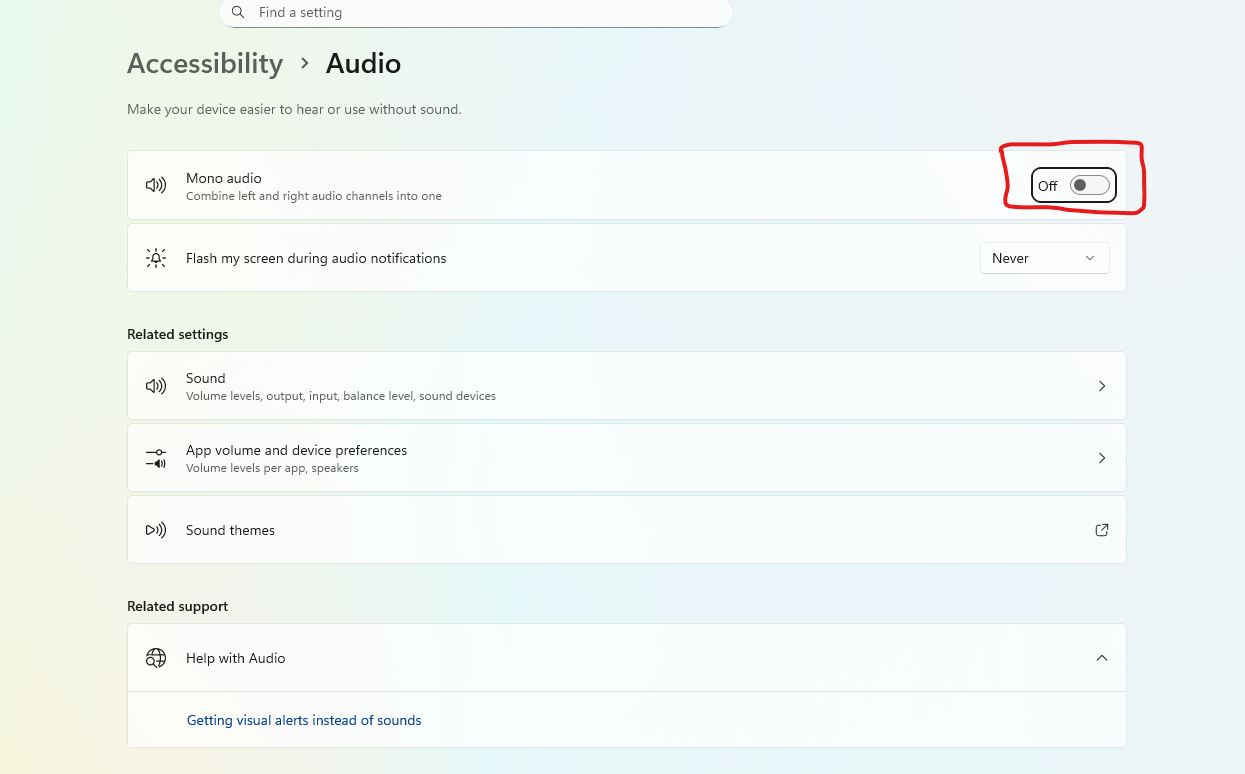
Ensure the "Mono audio" toggle is set to OFF to enable true stereo sound.
3) One Side Is Silent (Dead Channel)
- Symptom: One ear never plays.
- Quick checks: Re-seat the 3.5mm plug until it clicks; try another port. Test on a phone to rule out the PC jack. If still dead, the cable or driver is likely damaged.
Why a Stereo Test Matters
- Gaming: Footsteps in Valorant or CS should match direction; inverted channels ruin positional audio.
- Music and movies: Mix engineers place instruments in the stereo field. Mono collapses the stage and hides details.
- Work calls: A dead channel can hide voices in one ear, making meetings harder to follow.
FAQ: Common Audio Channel Issues
- Why is my left earbud louder? Adjust Sound Settings -> Properties -> Levels -> Balance (Windows) or audio balance sliders in macOS/Android.
- Can I test surround (5.1/7.1) here? This tool targets stereo (2.0) - ideal for 99% of headphones and desktop speakers.
- Does Bluetooth affect channels? Rarely, but low-battery earbuds can downmix or drop one side; charge and retest.
Quick Fix Checklist
- Toggle Mono off, then back on, then off again to clear stuck settings.
- Swap USB or Bluetooth dongle ports to remove driver hiccups.
- For amps or interfaces, verify left/right cables match the labels on both ends.
- If using OBS or other routing software, ensure you are not outputting a mono mix.
Done with the audio check?
If your headphones are working perfectly, make sure your input devices and visual hardware are up to speed too:
Ready to Test Your Audio?
Use our free stereo audio tester to confirm left/right channels, mono toggles, and balance in seconds.
Start Audio Test