Stuck Pixel Fixer: How to Fix Dead Pixels on Monitors & Screens
Bright dot on your display? Learn the difference between dead vs. stuck pixels and use our free Stuck Pixel Fixer to flash them back to life without leaving your browser.
We build and review browser-based hardware diagnostics for monitors, keyboards, mice, audio, and controllers. We validate tools with real devices and update guides as browser behavior and standards change.
Stuck Pixel Fixer: How to Fix Dead Pixels on Monitors & Screens
Finding a bright dot on your expensive monitor or new smartphone is a nightmare. Before you panic and return the device, you need to know: Is it a Dead Pixel or a Stuck Pixel?
If it is a Stuck Pixel, there is a strong chance you can fix it right now, for free, without leaving your browser.
We have built a professional Stuck Pixel Fixer tool directly into our website to help you massage those frozen pixels back to life.
👉 Launch Free Repair Tool
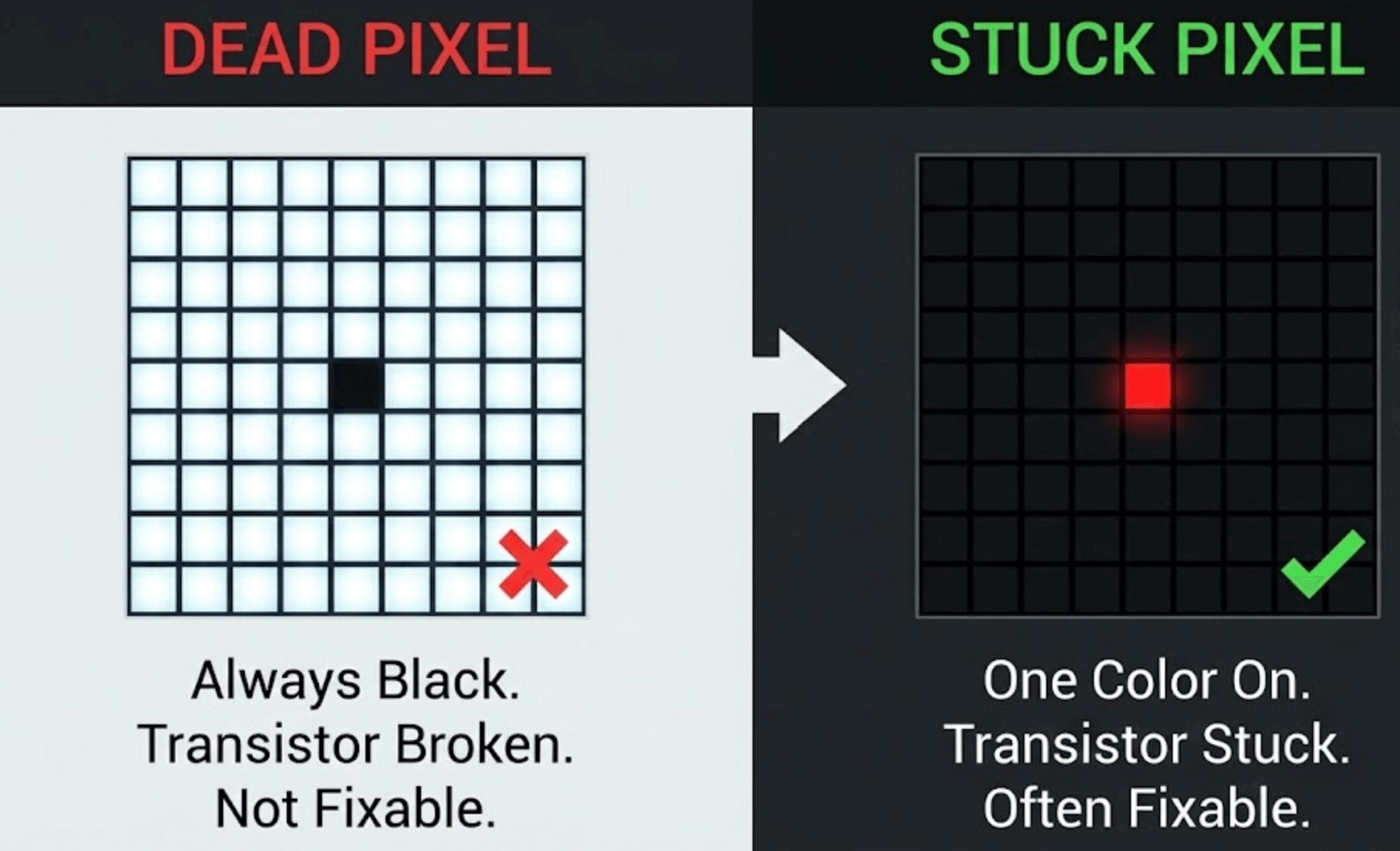
Step 1: Diagnosis (Dead vs. Stuck)
You cannot fix what you do not understand. Look closely at the dot on your screen (a magnifying glass helps).
- Stuck Pixel (Fixable): The pixel is Red, Green, Blue, or Yellow.
Cause: The transistor is "stuck" in the ON position or partly ON. It is receiving power but not changing colors.
Verdict: Try our Fixer below. - Dead Pixel (Hard to Fix): The pixel is Black.
Cause: The transistor is dead and blocking light (on IPS/TN panels) or not lighting up at all (on OLED).
Verdict: Usually permanent hardware failure, but you can still try the fixer just in case.
Step 2: The "Flashing Method" (Software Fix)
The safest and most effective way to repair a stuck pixel is by over-stimulating the liquid crystals. By flashing Red, Green, and Blue colors at a very high frequency (60Hz or higher), we can force the stuck sub-pixel to "unstuck" itself.
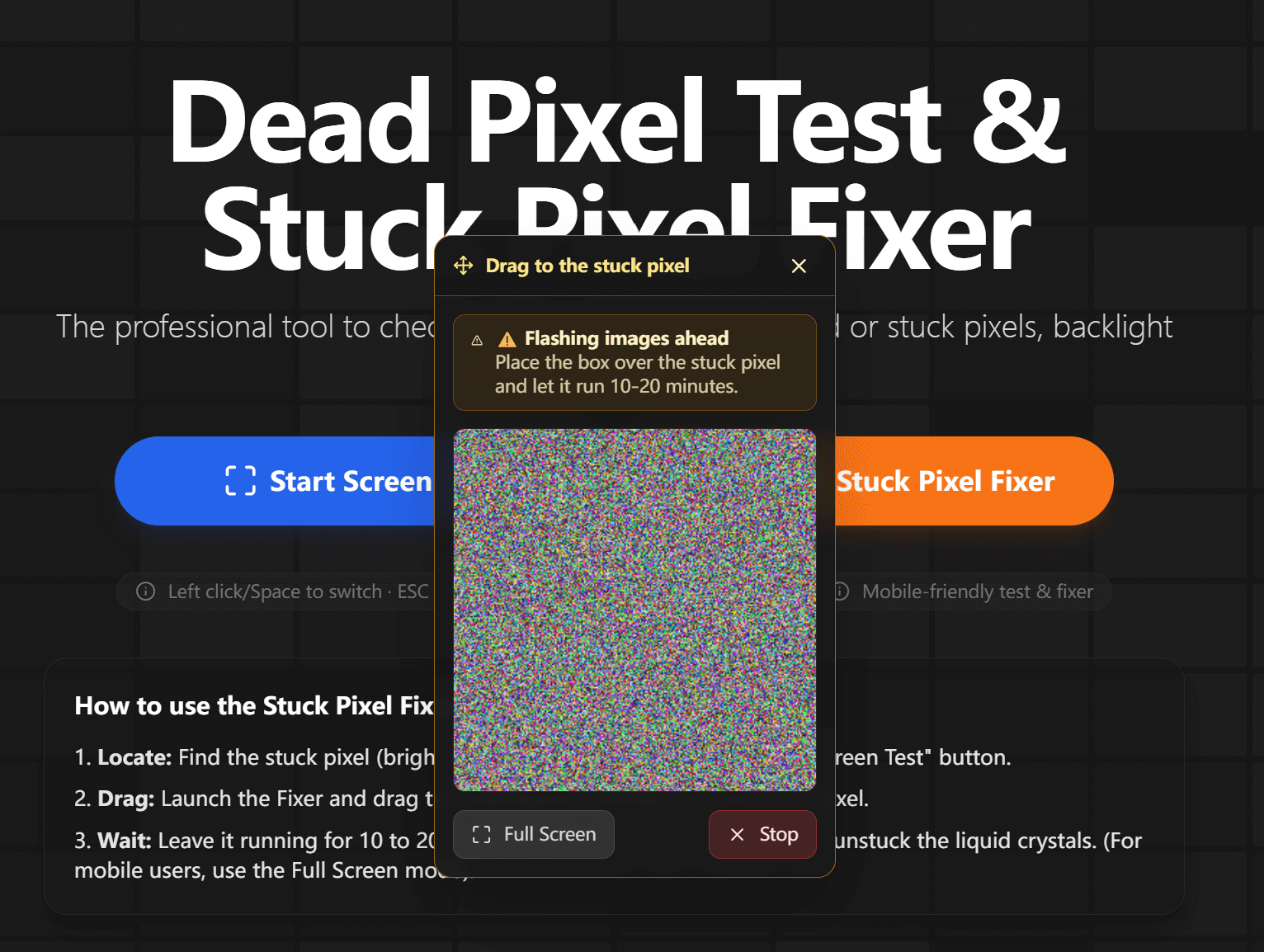
Drag the flashing box directly over the stuck pixel. The rapid color changes stimulate the liquid crystals to fix the defect.
How to use our Stuck Pixel Fixer Tool:
- Launch the tool: Click "Launch Stuck Pixel Fixer" on our Dead Pixel Test page.
- Locate the pixel: Use the "Start Screen Test" first to find exactly where the dot is.
- Drag the box: A flashing square will appear. Drag this box so it is directly covering the stuck pixel.
Mobile users: Tap "Full Screen" to flash the entire display. - Wait: Let it run for at least 10 to 20 minutes.
Stubborn pixels: Some pixels may require running the tool for an hour or more. You can leave the window open while you do other things (just make sure the box stays over the pixel).
⚠️ Warning: This tool produces rapidly flashing lights. Do not look directly at the screen if you are sensitive to flashing lights or have photosensitive epilepsy.
Step 3: The "Pressure Method" (Hardware Fix)
If the software method doesn't work after an hour, you can try the "Pressure Method." Proceed with caution—pressing too hard can damage your screen further.
- Turn off your monitor.
- Get a damp, soft cloth (microfiber is best) to protect the screen.
- Take a stylus or a pen cap (something dull, not sharp).
- Place the cloth over the stuck pixel.
- Apply gentle pressure with the pen cap directly on the pixel.
- While holding the pressure, turn the monitor back on.
- Release the pressure. Sometimes, this physical nudge forces the liquid crystal to realign.
Step 4: The "Heat Method"
This is a last resort. Heat can help liquid crystals flow better.
- Soak a cloth in hot water (hot, not boiling).
- Place the cloth inside a plastic bag (to keep water off your electronics).
- Hold the warm bag against the stuck pixel area for a few minutes.
- Run the Flashing Tool again immediately after.
Summary
Most "broken" pixels are just stuck. The combination of our High-Frequency Fixer plus a little bit of patience resolves the issue for most users.
Ready to try?
Check Your Other Gear
Screen looking good? Make sure your input devices are up to speed:
Ready to Test Your Monitor?
Use our professional dead pixel tester to check your screen for dead pixels, stuck pixels, and display uniformity issues.
Start Screen Test